How to Upscale Your Amazon Main Image
Upscale your Amazon main image by starting from the cleanest original, upscaling without changing the product, then re-cutting onto a true white background and exporting in an Amazon-accepted format to avoid rejections and protect CTR and CVR.
Dec 26, 2025
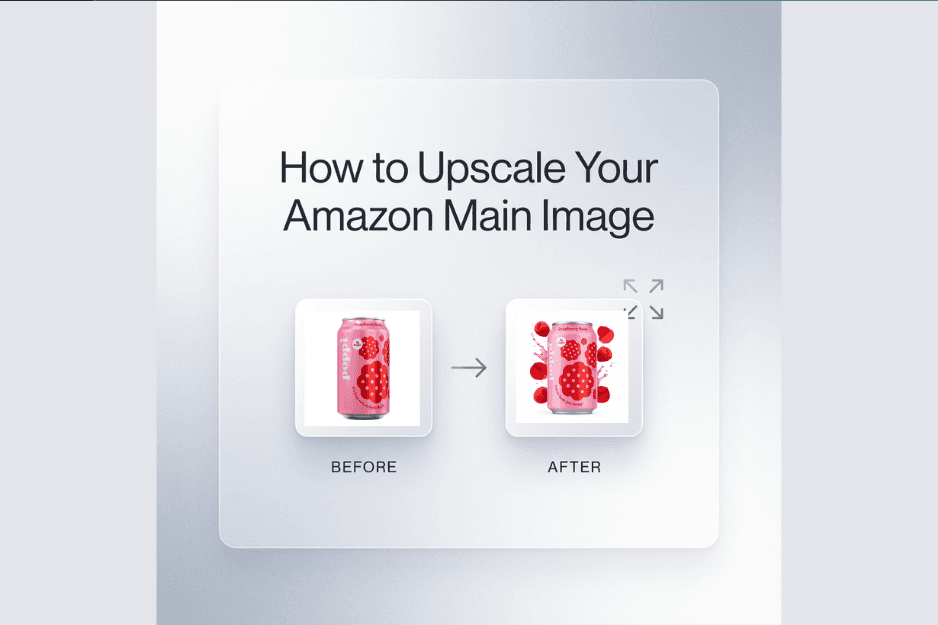
Upscale safely by using an upscaler on your best original, then re-mask the product onto a pure white background, sanity-check edges and label accuracy, and export in an accepted format before upload. This avoids the two big killers: “looks edited/AI” artifacts (CTR drop) and compliance flags that cause rejection or suppression (CVR drop).
Fastest path (5-minute version)
Grab the highest-res original you have (camera file beats a screenshot every time).
Run it through an upscaler, choose “photo” or “product” mode if available, avoid “creative” modes.
Inspect the label and fine text at 200% zoom, confirm nothing changed.
Re-cut the product (mask) in a photo editor to remove halos and jaggies.
Set the background to pure white, not “close to white.” (https://sellercentral.amazon.com/help/hub/reference/external/G1881)
Export as JPEG if possible, keep it sharp but not crunchy. (https://sellercentral.amazon.com/help/hub/reference/external/G9FUUH87RBNXGKB7)
Re-open the exported file and check edges again (export can add artifacts).
Upload, then verify on mobile and desktop, search grid and PDP.
If it gets flagged, fix the specific failure mode below and re-upload.
Key takeaways
Amazon mostly rejects main images for background/format issues and “product not accurate” signals, not because you upscaled.
Upscaling helps CTR when it improves clarity in the search grid, but it hurts CTR fast if it introduces halos, warped labels, or fake texture.
Keep edits boring: accurate product, clean edges, real-looking shadows, true white background.
If you are unsure about a rule for your category, verify in Seller Central for your category.
What Amazon actually cares about for main images
Amazon’s main image rules are about shopper trust: the product should look real, match what will arrive, and sit cleanly on a white background.
Background expectations
Main images are expected to be on a pure white background, not off-white. (https://sellercentral.amazon.com/help/hub/reference/external/G1881)
Technical acceptance
Amazon accepts common image formats like JPEG, TIFF, PNG, and non-animated GIF, and recommends JPEG. (https://sellercentral.amazon.com/help/hub/reference/external/G9FUUH87RBNXGKB7)
Resolution and clarity
Amazon publishes pixel-range guidance, and also calls out clarity issues like pixelation or jagged edges as problems. (https://sellercentral.amazon.com/seller-forums/discussions/t/8bc27788-53c9-4cf8-ad43-c5eaa9400692)
Product accuracy as the real rule
Upscaling is fine until it changes the product. If the upscaler “helpfully” rewrites small text, alters color, or warps shapes, you have created a mismatch that can trigger rejection and also hurt CVR (buyers notice, then bounce).
Step-by-step: upscale your main image (clean, compliant, sharper)
Start with the best source file
Use the highest-resolution original you can access. Avoid tiny supplier thumbnails and screenshots if possible.Make a safety copy and lock a reference
Save the original. Open it side-by-side with your working file so you can spot any unintended changes.Upscale with a conservative mode
Pick an upscaler setting designed for photos, not illustration, not “fantasy,” not “enhance details aggressively.” Your goal is to recover clarity, not invent pixels.Immediately verify product accuracy at 200%
Check: label text, ingredient lists, model numbers, seams, textures, edges of packaging, and any regulated markings. If anything changed, undo and lower the strength or switch modes.Rebuild edges with a fresh mask
Even good upscalers can create edge shimmer. Mask the product again in a photo editor so the outline is clean.Replace the background with true white
Do not rely on “nearly white” from a lightbox. Set the background to pure white. (https://sellercentral.amazon.com/help/hub/reference/external/G1881)Fix shadows the non-weird way
If you keep a shadow, keep it soft and believable. Avoid hard cutout shadows, floating products, or dramatic “studio spotlight” looks that scream edited.Correct color shifts before export
Upscaling can nudge saturation or tint. Compare to the original and to your packaging proofs. If your brand color is slightly off, your CVR pays for it.Export in an accepted format
Export as JPEG unless you have a reason not to, and keep it in an accepted Amazon format. (https://sellercentral.amazon.com/help/hub/reference/external/G9FUUH87RBNXGKB7)Re-open the exported file and re-check edges
Compression can add halos or ringing. Inspect corners, curves, and small text again.Upload and validate on real placements
Check the search results grid (CTR moment) and the product page (CVR moment). If it looks smaller, muddy, or overly sharpened on mobile, adjust.Log what changed
If you manage many ASINs, write down the exact steps and settings that worked so you can repeat them consistently.
Checks and failure modes (fix before you re-upload)
Halos: edge glow around the product, usually from bad masking or over-sharpening.
Jagged edges: stair-stepping on curves, usually from low-quality selection or resizing.
Fake shadows: product looks like it is floating or pasted.
Color shift: packaging looks “almost right” but not right.
Warped labels: text looks subtly bent or re-drawn, high rejection risk and high CVR damage.
Invented texture: plastic becomes “paper,” metal becomes “grainy,” or surfaces look painted.
Settings that usually work (and what to avoid)
Output resolution strategy
Start by meeting Amazon’s stated pixel guidance for your marketplace and category, then scale upward only if the image still looks clean. Verify in Seller Central for your category. (https://sellercentral.amazon.in/help/hub/reference/external/G9D4LHG7VDLCMHTY?locale=en-IN)
If you upscale beyond what your original can support, you get “sharp blur,” it looks detailed at a glance, then falls apart on zoom.
File format and compression
JPEG is typically the safest default for Amazon uploads, and it is explicitly called out as recommended in Amazon’s technical requirements. (https://sellercentral.amazon.com/help/hub/reference/external/G9FUUH87RBNXGKB7)
Avoid ultra-low quality exports. They create banding in whites and ringing on edges, both can trigger “looks edited” flags.
Color space and sRGB drift
Aim for consistent color appearance across devices. If your workflow flips between color spaces, packaging colors can shift.
Practical check: view the exported file on at least two displays (or one display plus your phone). If it changes noticeably, fix it before upload.
What to avoid
“Creative” upscaling modes that rewrite detail.
Heavy clarity/sharpen sliders that create crunchy edges.
Auto background tools that leave gray fringing.
Any workflow that changes label text, even slightly.
If your image looks “AI” (how to fix it)
Edges look too perfect: add a more natural cutout edge, remove the glow, and reduce sharpening.
Shadows look fake: soften, lower opacity, and anchor the shadow directly under the product.
Reflections look painted: reduce contrast and remove repeating patterns.
Texture looks invented: dial down “detail,” re-run the upscale more conservatively, or blend some original texture back in.
Label integrity looks off: replace the label area using the original (or a clean label scan) and re-check every character.
Noise and sharpening look weird: prefer mild noise reduction, then mild sharpening, not the other way around.
Troubleshooting
It’s still blurry
Your original is too low-res or out of focus. Upscaling cannot restore detail that never existed. Re-shoot or get better source files, then upscale lightly.
Edges look jagged
Re-mask at higher precision, avoid resizing multiple times, and export once at final size.
Background isn’t pure white
Set the background to pure white, not “close.” (https://sellercentral.amazon.com/help/hub/reference/external/G1881)
My label text changed
Stop and revert. Any text changes are a product-accuracy risk. Replace the label area from the original and upscale more conservatively.
Colors shifted
Compare against the original and packaging proof. Reduce saturation and correct white balance until it matches.
Upload fails
Confirm your file is in an accepted format and re-export. (https://sellercentral.amazon.com/help/hub/reference/external/G9FUUH87RBNXGKB7)
When Pixii helps (practical, not salesy)
You have many ASINs and need consistent main image quality without a long back-and-forth loop. (https://pixii.ai/)
You have many variants (sizes, scents, colors) and need the same clean framing and white background across all of them. (https://pixii.ai/)
You want to move fast: generate a clean, compliant-looking main image and the full 7-image stack in one workflow, then spot-edit fast. (https://pixii.ai/)
You need fewer redo loops because the workflow is built around “keep the product accurate, fix the presentation.” (https://pixii.ai/)
You want a quick, objective check on what is hurting CTR and CVR before you touch anything. (https://amazon-listing-grader.pixii.ai/)
You are an agency shipping many listings and want a repeatable process instead of one-off edits per SKU. (https://pixii.ai/pricing)
You want faster refresh cycles (better merchandising velocity) without risking preventable rejections from sloppy edges or backgrounds. (https://pixii.ai/)
FAQ
Q: Will upscaling alone get my image rejected?
A: Usually no. Rejections tend to come from background issues, unacceptable file types, or edits that make the product look inaccurate.
Q: What is the safest type of upscaling?
A: Conservative photo upscaling that preserves the original details, then manual edge cleanup and white background replacement.
Q: Should I remove all shadows?
A: Not always. A soft, natural shadow can look more real, but harsh or floating shadows can trigger quality issues and reduce trust.
Q: Can I use an AI tool to “enhance” the label?
A: Be careful. If it changes any text or symbols, you risk product mismatch. Keep label content identical to the real product.
Q: Why does my white background look gray after upload?
A: Your “white” is probably not pure white or it has banding from compression. Set the background to pure white and export cleanly. (https://sellercentral.amazon.com/help/hub/reference/external/G1881)
Q: What file format should I upload?
A: Use an Amazon-accepted format, and JPEG is commonly recommended. (https://sellercentral.amazon.com/help/hub/reference/external/G9FUUH87RBNXGKB7)
Q: My image looks sharp on desktop but bad on mobile, why?
A: Over-sharpening and compression artifacts show up fast on small screens. Reduce sharpening, re-export, and re-check on your phone.
Q: How do I scale this process across a catalog?
A: Standardize the steps, lock your settings, and use a workflow that lets you apply the same clean treatment across many ASINs, then spot-fix exceptions. (https://pixii.ai/pricing)
Q: How do I know what to fix first for conversion?
A: Start with the main image (CTR), then fill the rest of the stack to answer buyer questions (CVR). A quick audit helps prioritize. (https://amazon-listing-grader.pixii.ai/)